
PLEASE NOTE: This feature is in preview on the Power Platform (but in general availability on Dynamics 365 products) and currently only available in environments that are in the US region. Addition: I have been seeing this enabled in some European installations, despite the official message from Microsoft that this only works in the US. So it might be available for other regions as well. But do not count on it before it is official.
You all knew this was coming. Copilot is still the hottest topic in the Microsoft world, and we want it enabled in everything, so if you are like most people in this space, this is the post you have been waiting for.
Copilot is being introduced to all areas of Microsoft’s product suite and Power Apps are no exception. Most of the attention has been on the impressive capabilities of the Copilot features in Power Automate and Canvas apps, with the effect that the model-driven app capabilities have been somewhat overlooked. I want to change that.
Why do I want copilot in my model-driven app?
First and foremost, and even though it might not sound logical, Copilot gives you the ability to access your data in a more “human” way. Instead of trying to set up all sorts of filters and sorting mechanisms, you can instead use natural language and ask your database questions. This way you avoid trying to deduce it from datasets where multiple filters might be needed.
The second reason is that it also helps with providing a litmus test for how your data is structured. If users are having a hard time finding the correct data, either through normal use or through copilot, then this can be a good opportunity to consider what data is stored and how.
So how do I enable Copilot for model-driven apps? And how do I actually use copilot to work on my data? The documentation for it can be a bit puzzling for some, and it only answers the first part of enabling the feature. I also want to cover how to start working with the data as well.
If you want to read the official documentation, you can find it here
The rest is my 5-step guide:
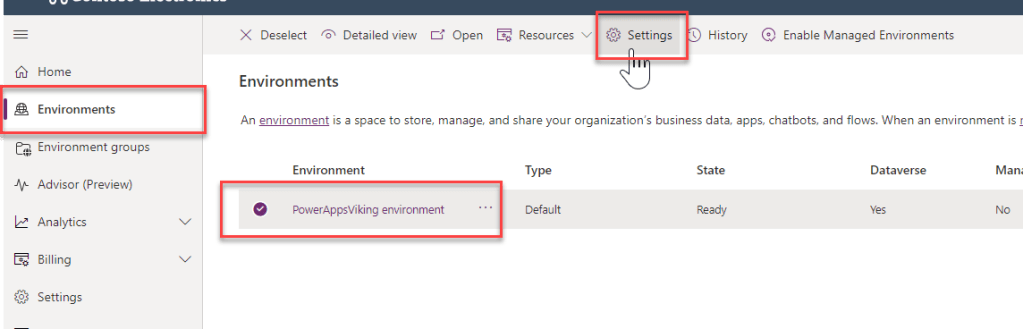
Step 1 – Navigate to the environment settings
First step is to add the feature itself. This is done by going to the admin center (admin.powerplatform.com) and navigating to the environment that should have the feature enabled.
Step 2 – Go to features
Next you need to navigate to the settings and under “product” find the “Features” option

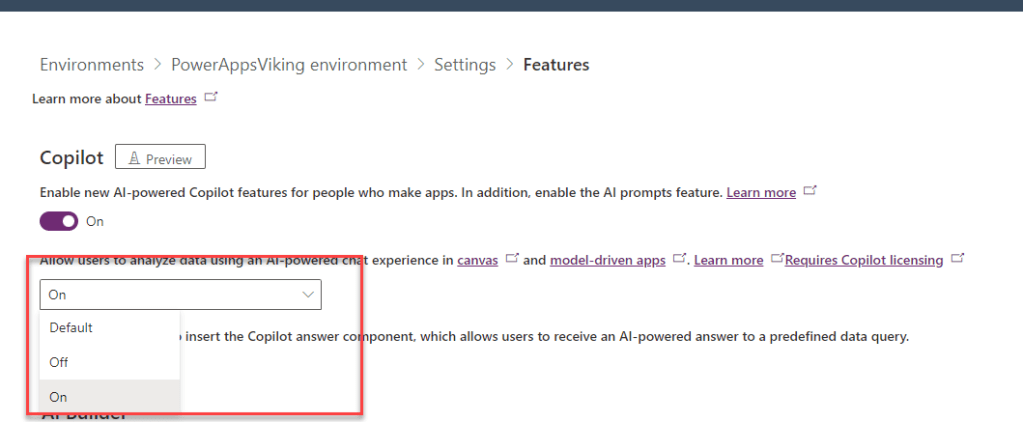
Step 3 – Enable AI for users
Under Features is where you can allow users to interact with data in your model-driven apps. You enable this by setting the “Allow users to analyze data using AI-powered chat experience” option to “Yes”. The other Copilot settings are related to using co-pilot for creating apps.
Step 4 – Create an app or use an existing Business Application
When this has been enabled you can create a new model-driven app or use your existing application. Go to the application that contains data in a table, or even multiple tables.
Types of prompts:
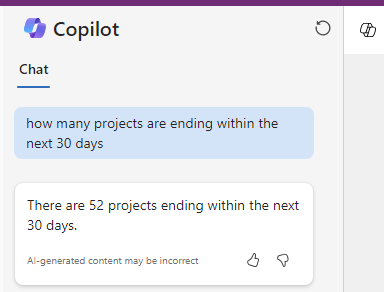
Now the first thing you would typically ask is probably very filter/list oriented. But the real magic lies in the ability of Copilot to further drill-down or assess the results in a conversation. An example could be asking Copilot to tell you what the type of data a query would bring you. Then a follow-up question could be to provide a list with certain columns included such as this example:
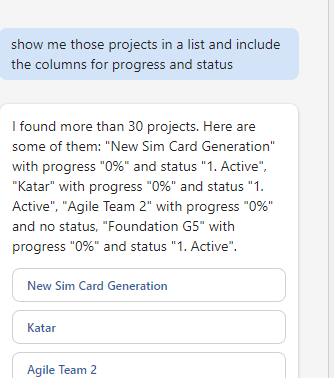
This also provides you with an overview of which records contain the necessary data to adequately filter and sort. This provides an insight into the quality of your data as well.
Step 5 – Interacting with data in all tables
Getting data from a single table resembles the typical scenario that users have been used to when interacting with model-driven apps. But let’s expect more! Copilot allows you much more flexibility in terms of the types of questions you can ask. For me, one of best use-cases for Copilot is the ability to ask questions about any data in your applications, no matter which table you are looking at.
In my first example I was looking at a Project table and was asking questions about data in that specific table. However, we can easily imagine a user looking at one set of data, but then getting reminded of another area. You might be looking at your projects and remember that there is a risk record which required attention. In this case you would normally have to either navigate to the risk overview or navigate to the risk through a related record. Instead, you can ask Copilot directly about any data. In my example I am still looking at my project table and even continued directly from the conversation about projects by simply asking about data in a different table.

Clicking on the result takes me directly to a record in a different table, without having to switch to new areas in the navigation and having to set up filters systematically.
My examples are only a few of the use-cases for Copilot in model-driven app. If you have any examples of what you have seen or done that could be useful then let me know or add a comment to my LinkedIn post about this.
There are also some helpful guides within the Copilot about types of questions you can ask. You can click on “View Prompts” and see more examples of this.
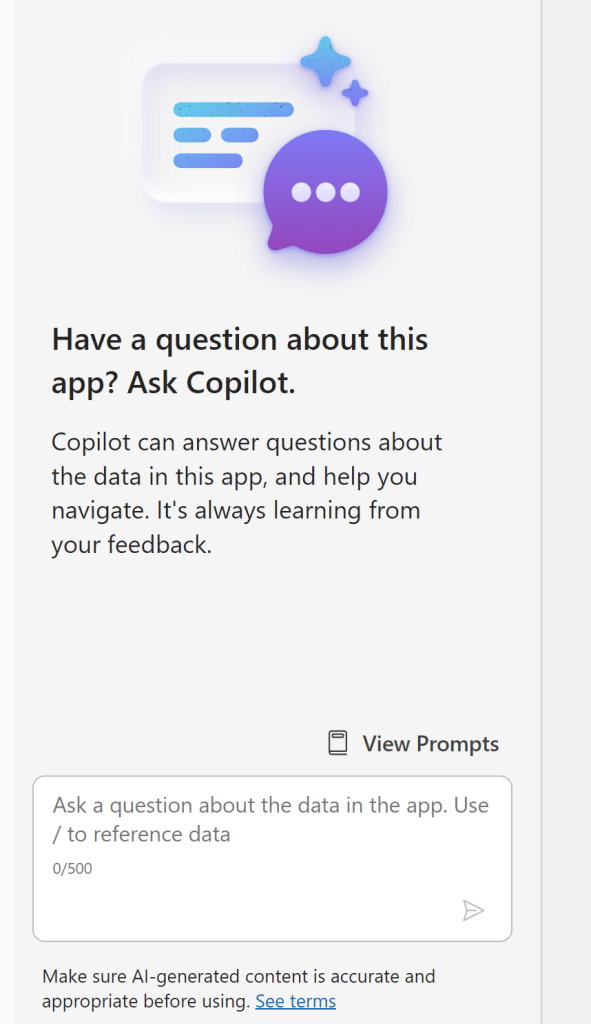
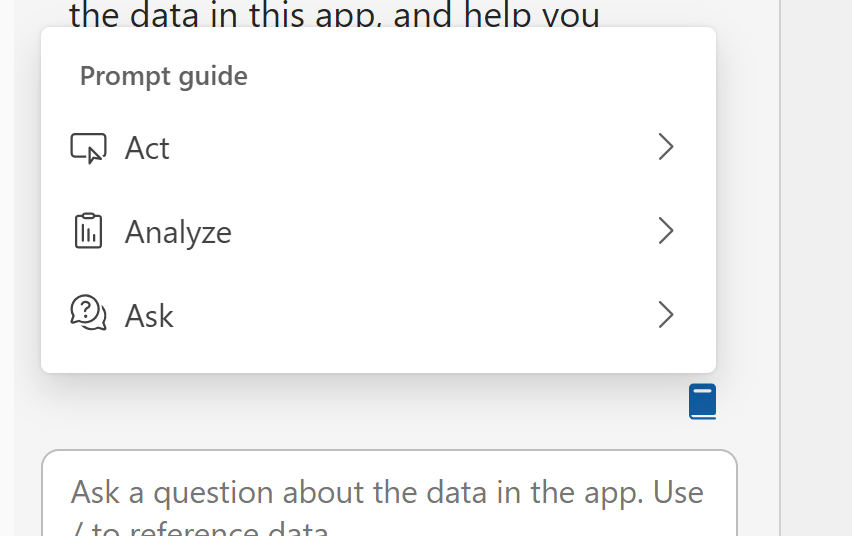
I hope you enjoy using Copilot for your data in model-driven apps as much as me and I look forward to this feature being available for all regions by default!
 Power Apps Viking
Leave a comment